Search and filter objects
Open Register's search runs across every register and schema you can read — full-text on string fields, facet filters on enums / dates / booleans, plus saved views you can pin to the navigation.
Goal
By the end you will have run one full-text search, narrowed it with a facet, sorted the results, and saved the query as a reusable view.
Prerequisites
- At least a handful of objects to search against — if your register is empty, run Add your first object a few times first, or import a sample dataset via the Actions → Import flow on the Registers page.
Steps
-
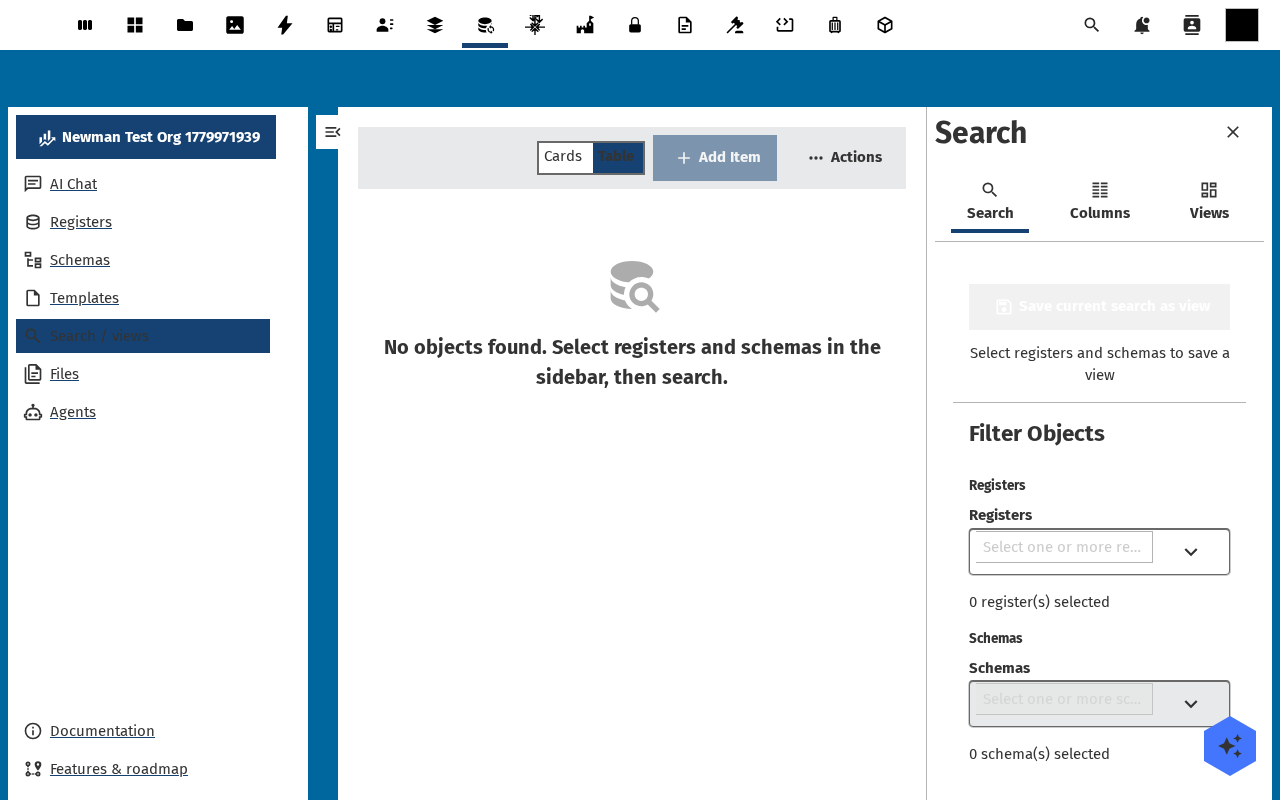
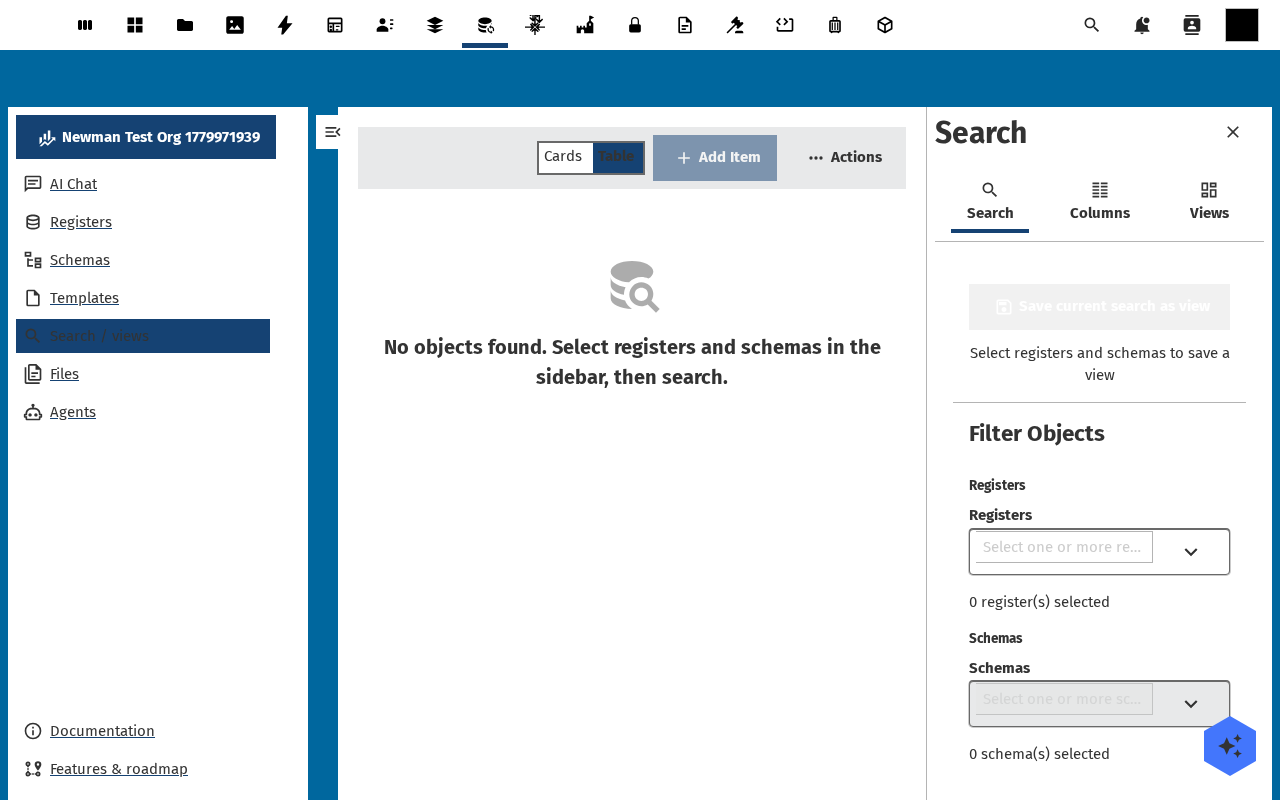
Open Search / Views in the navigation. The view opens with an empty search box, a faceted filter panel on the right, and an empty results area. The right-hand panel lists every register / schema / property you can use as a filter.
-
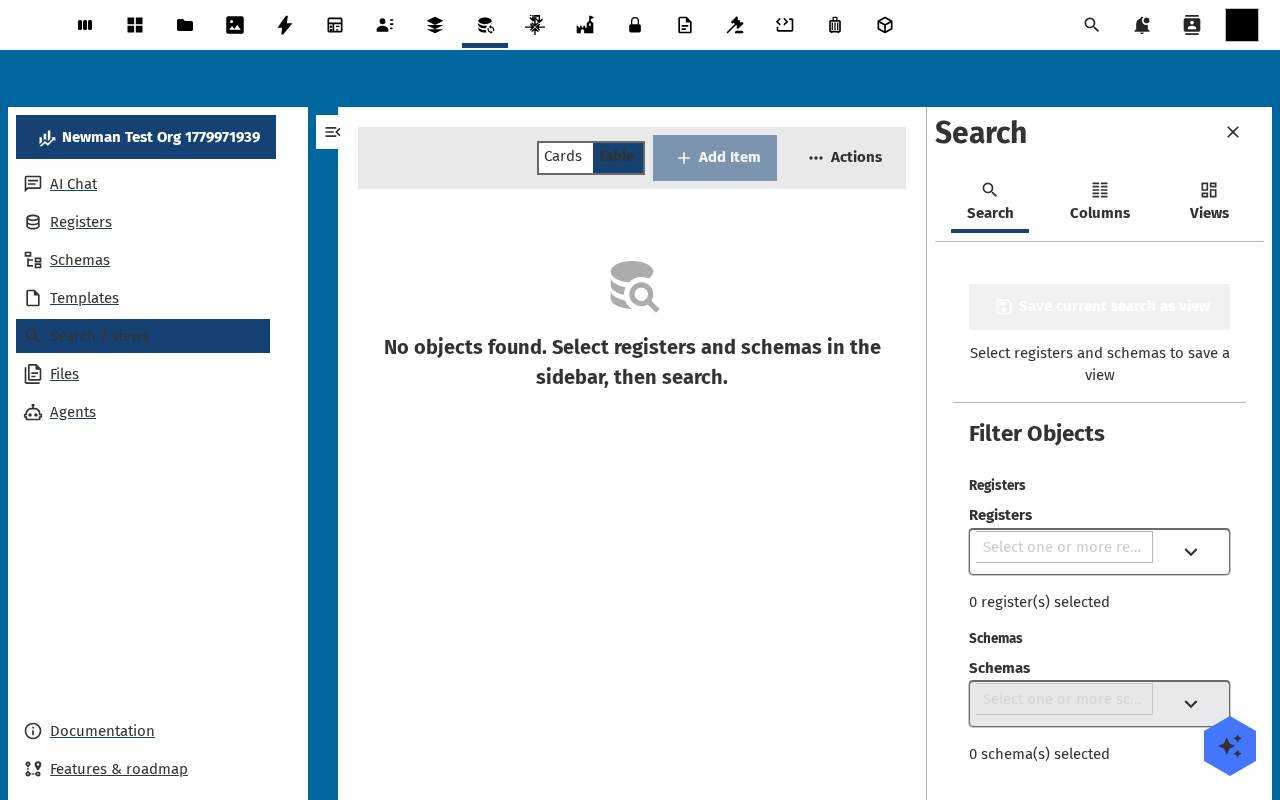
Type a few characters into the search box. Results stream in as you type — full-text across every searchable string property of every object you can read. The result count in the toolbar updates live.
-
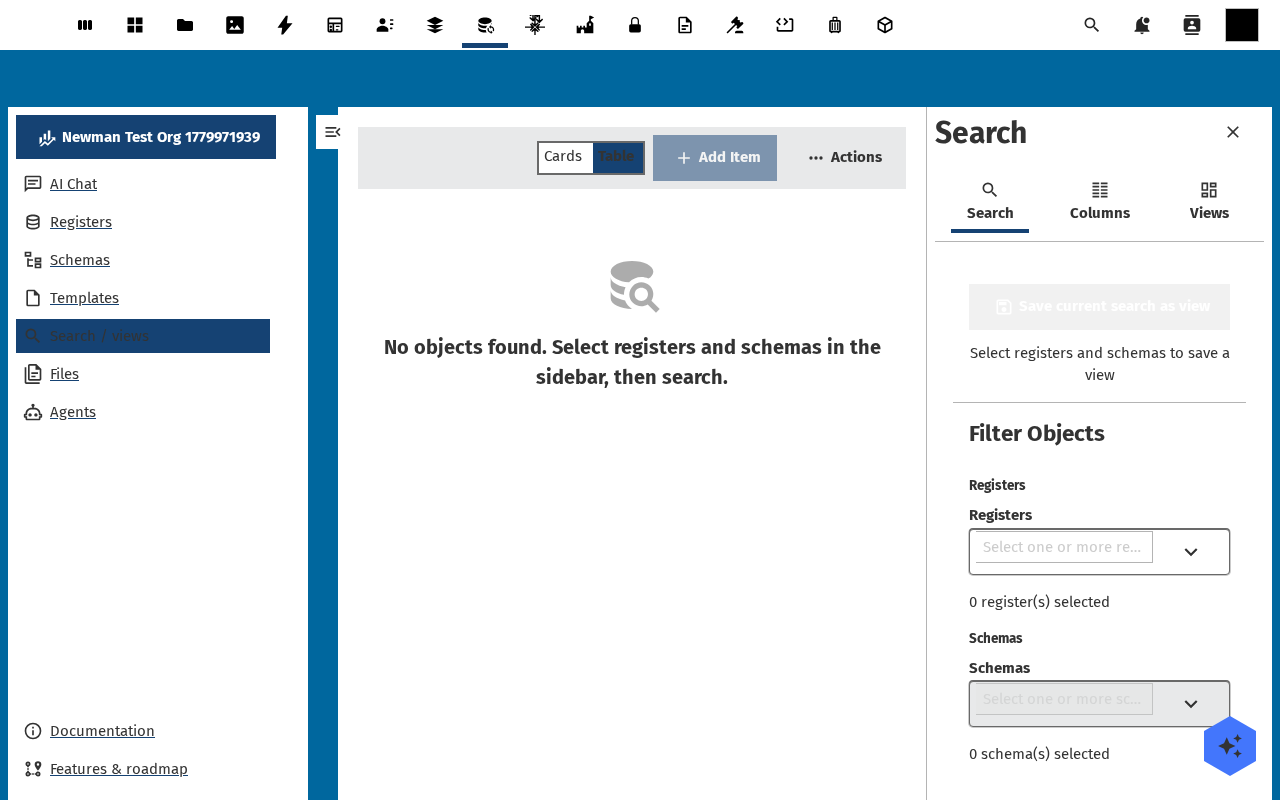
In the facet panel, expand a register or a schema and tick one of its values (for example status: draft). The results narrow to objects that match the text query and the facet. Add more facets to narrow further — they combine with AND.
-
Use the column-header arrows to sort by date, modified, or any other indexed property. Click the Cards / Table toggle to switch layout. The result list is keyboard-navigable — Enter opens the object detail page.
-
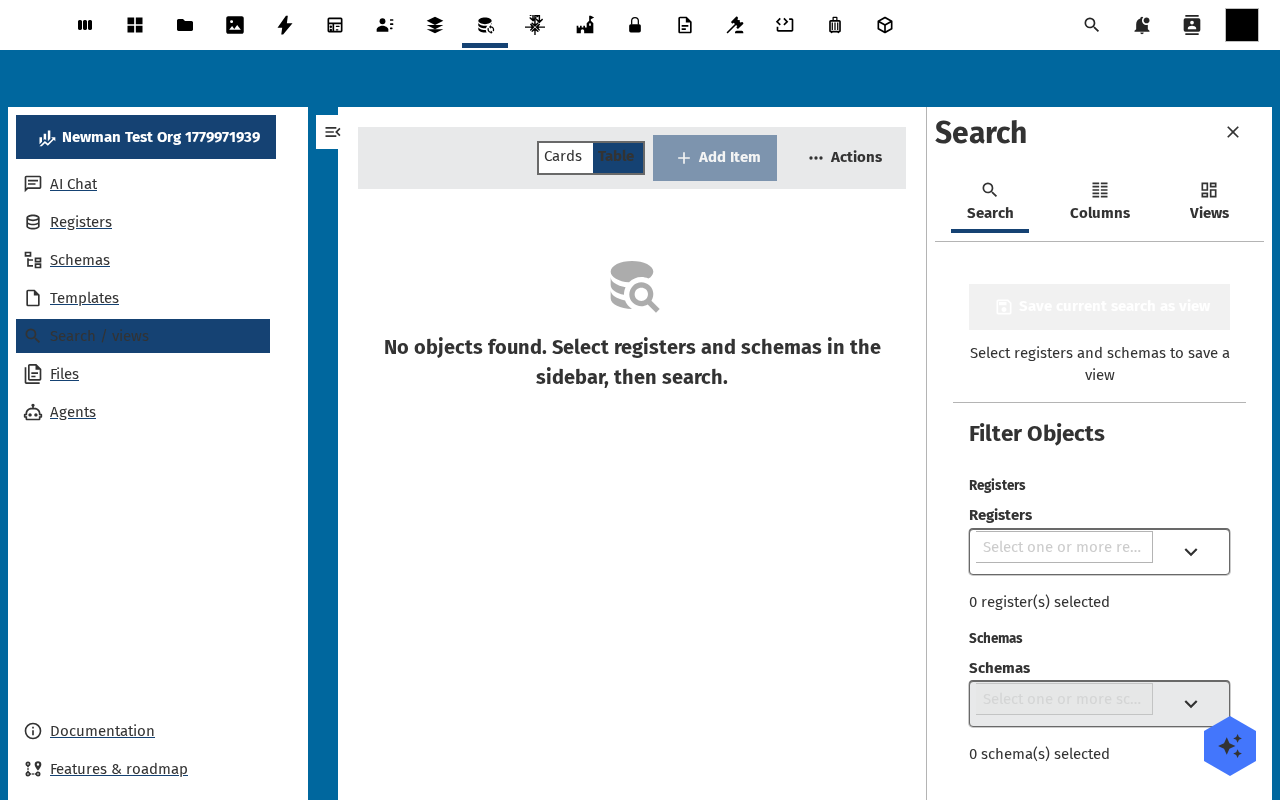
Click Save view in the toolbar. Give the view a title and an optional description. The saved view shows up under Search / Views in the navigation, so you can re-run the exact query and facet combination later.
Verification
The toolbar shows a non-zero result count, the facet panel reflects the filters you picked, the saved view appears in the left navigation, and clicking the saved view restores the exact same query + facet + sort combination.
Common issues
| Symptom | Fix |
|---|---|
| Search returns nothing for a term you can see in an object | The property is searchable: false in the schema — open the schema, switch to Source, and add "searchable": true to that property. |
| Facets stay empty | The objects haven't been indexed yet — admin runs occ openregister:reindex (see admin settings). |
| Saved view shows yesterday's results | Saved views remember the query, not the result set — re-open the view and the search re-runs against the live data. |
Reference
- Search and faceting feature reference — how the index works, which property types are indexed.
- View the audit trail — once you have found an object.