Create and attach a schema
A schema is the shape of one kind of object — the fields, their types, required-ness, validation rules. Open Register uses standard JSON Schema, so anything a JSON Schema linter understands works here. This tutorial creates a small schema and attaches it to the register from the previous step.
Goal
By the end you will have one schema in the Schemas list with a handful of typed fields, and your register will accept objects of that schema.
Prerequisites
- A register you can edit (see Create your first register).
- A rough idea of which fields the objects should carry — title, description, a status enum, a date. You can extend the schema later; start small.
Steps
-
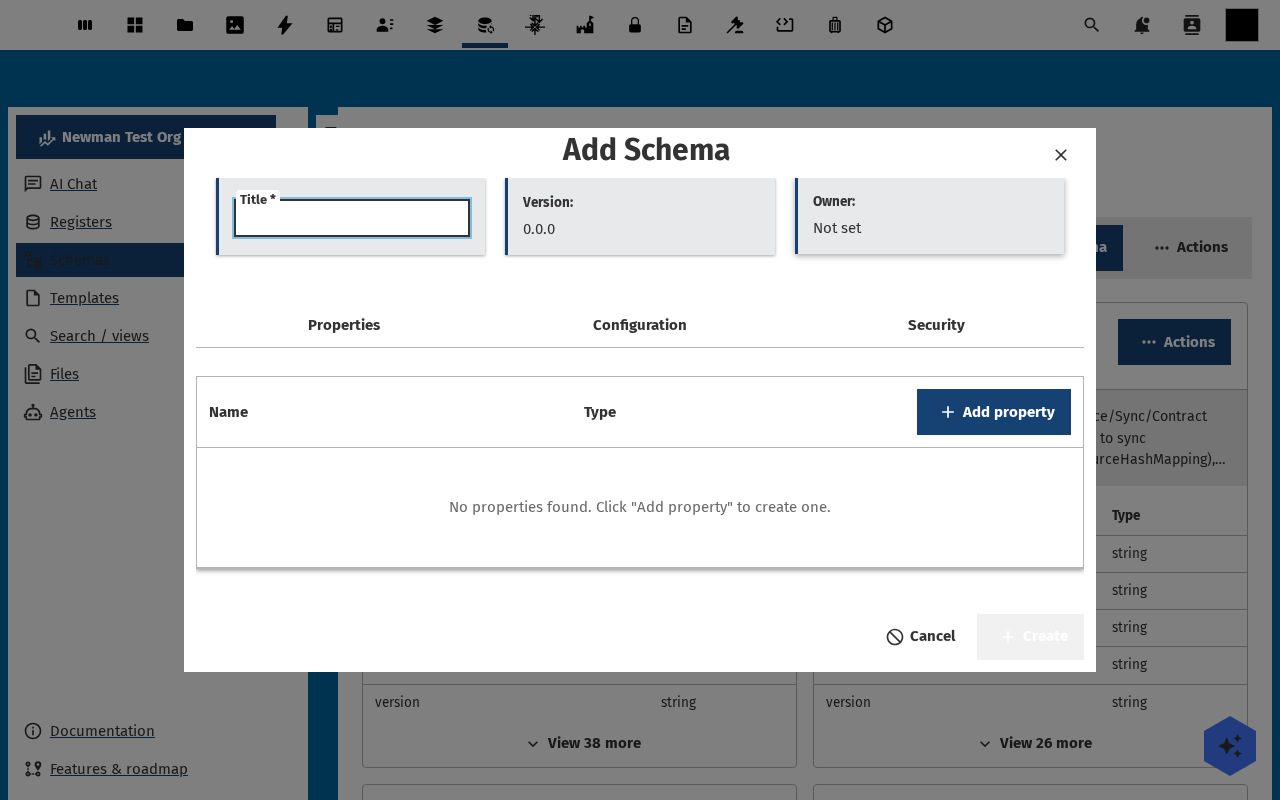
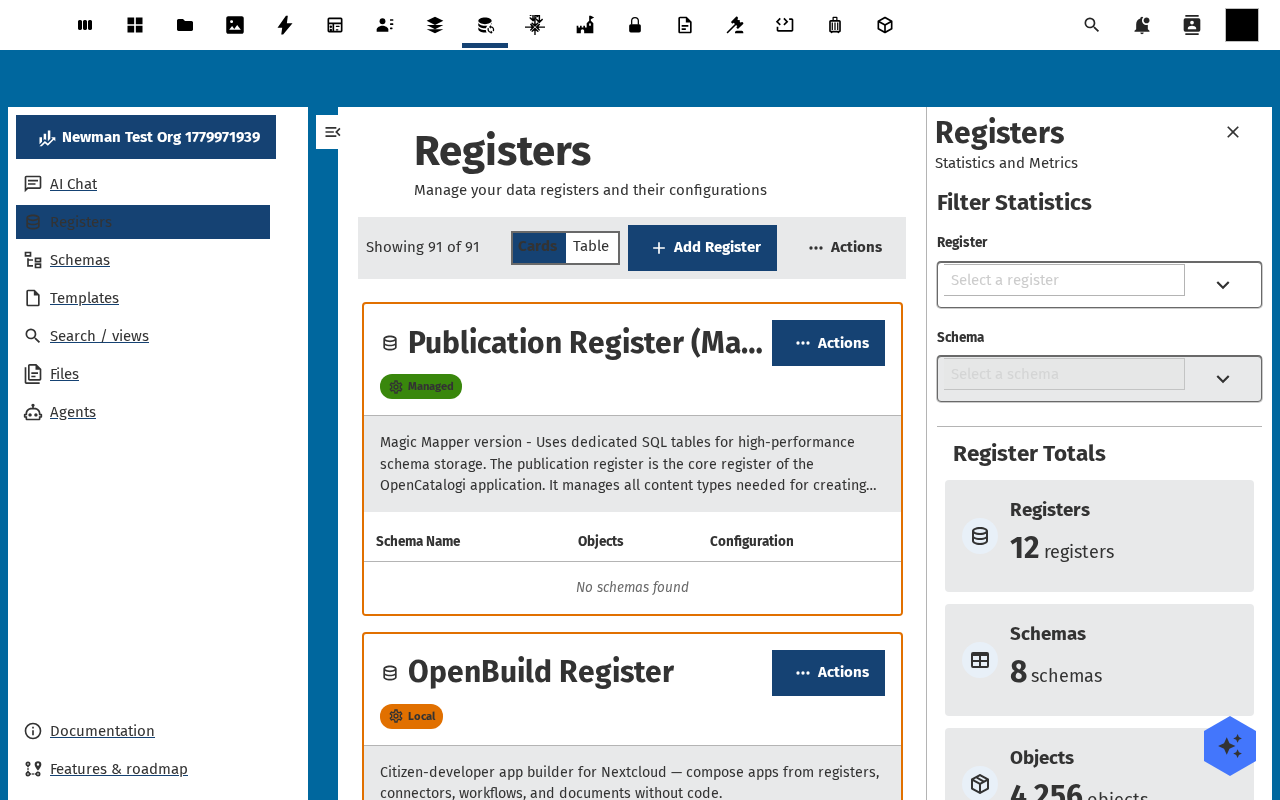
Open Schemas in the navigation. The list works like the Registers list — Cards / Table toggle, Add Schema button, statistics sidebar. Click Add Schema.
-
Fill in title, slug (auto-suggested), summary (one line on what objects of this schema represent), and optionally version (defaults to
1.0.0). Click Save — you land on the Schema detail page, on the Properties tab.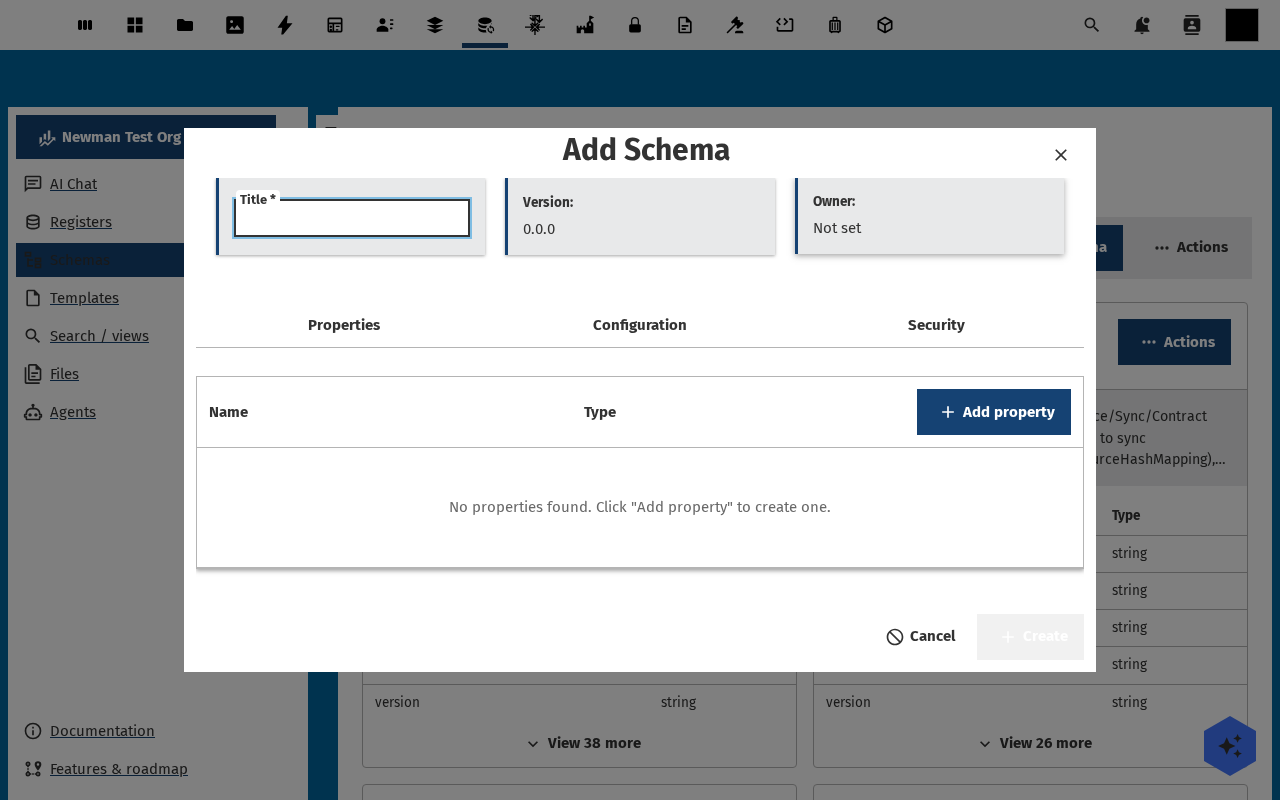
-
Click Add property to add the first field. Each property has a name, a type (string, integer, number, boolean, array, object, date, datetime), an optional format, required flag, and default value. Add four properties —
title(string, required),description(string),status(string withenum: draft / published / archived),date(string, format date).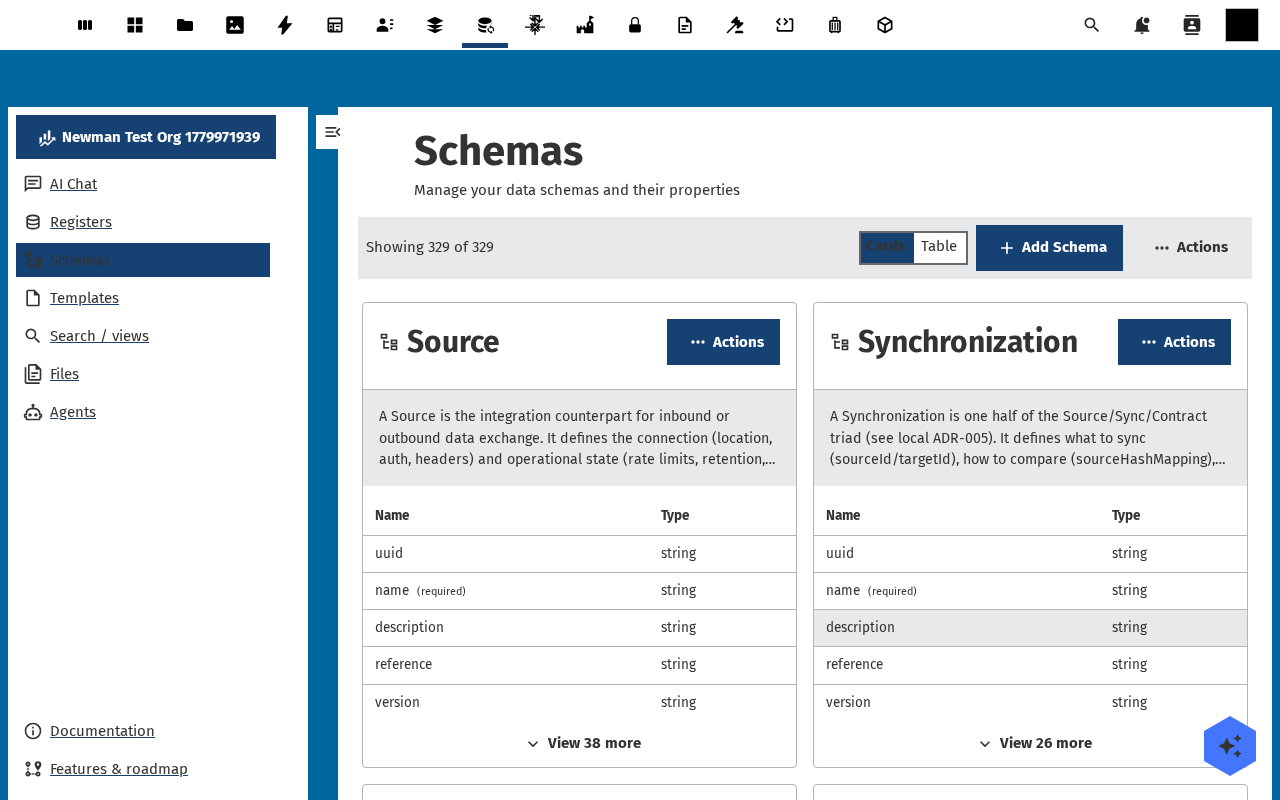
-
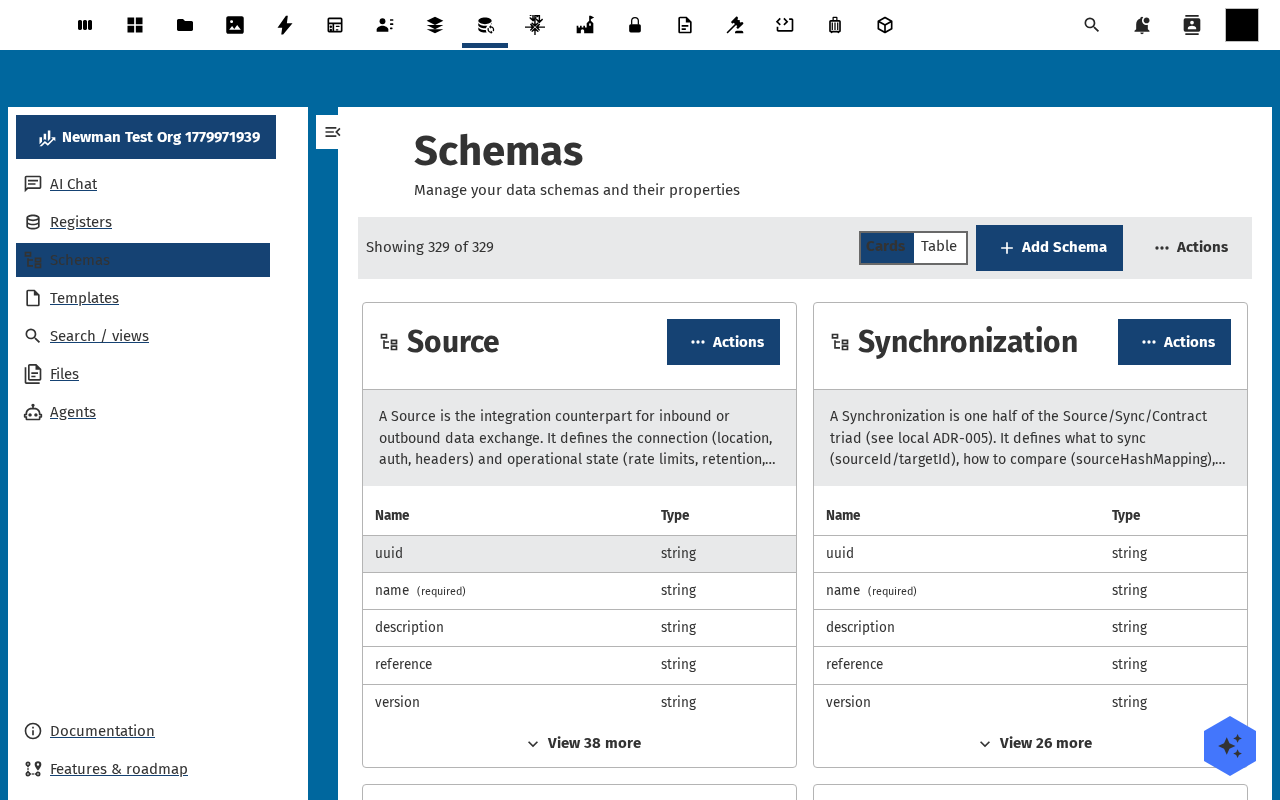
Switch to the Source tab — the raw JSON Schema document is generated for you. You can edit it directly if you prefer; the Properties tab and the Source tab stay in sync.
-
Open your register (Registers → click the card) and switch to its Schemas tab. Click Add schema, pick the schema you just made, and confirm. The register now accepts objects of this schema.
Verification
The schema shows in Schemas with the right field count, the Source tab renders valid JSON Schema, the linked register's Schemas tab lists it, and the register's Objects tab now offers an Add Object button (it was disabled when no schema was attached).
Common issues
| Symptom | Fix |
|---|---|
| Save fails with "JSON Schema invalid" on the Source tab | Run the raw schema through any JSON-Schema linter — usually a missing "type" or a malformed enum array. |
| Adding the schema to a register does nothing | The register or schema is read-only for your user — check the permissions setup. |
| Properties added in the UI don't appear in the Source tab | Refresh the page; the in-place editor and the source view sync on save, not on keystroke. |
Reference
- Add your first object — exercise the schema you just made.
- Registers and schemas feature reference — supported types, formats, custom keywords.
- JSON Schema official docs — the spec OR follows.