Create your first register
A register is a container that holds related objects of one or more schemas — think cars, contracts, publications, anything. Open Register stores everything inside one. This tutorial creates an empty register so you can attach schemas and objects in the next steps.
Goal
By the end you will have one register in the Registers list with a name, a slug, a description, and a Cards / Table view that opens cleanly.
Prerequisites
- Open Register opened and the Registers list reachable (see Open the Register app for the first time).
- The right to create registers — by default, any authenticated user can create their own. On an instance with the RBAC setup tightened, you need the register-admin role.
Steps
-
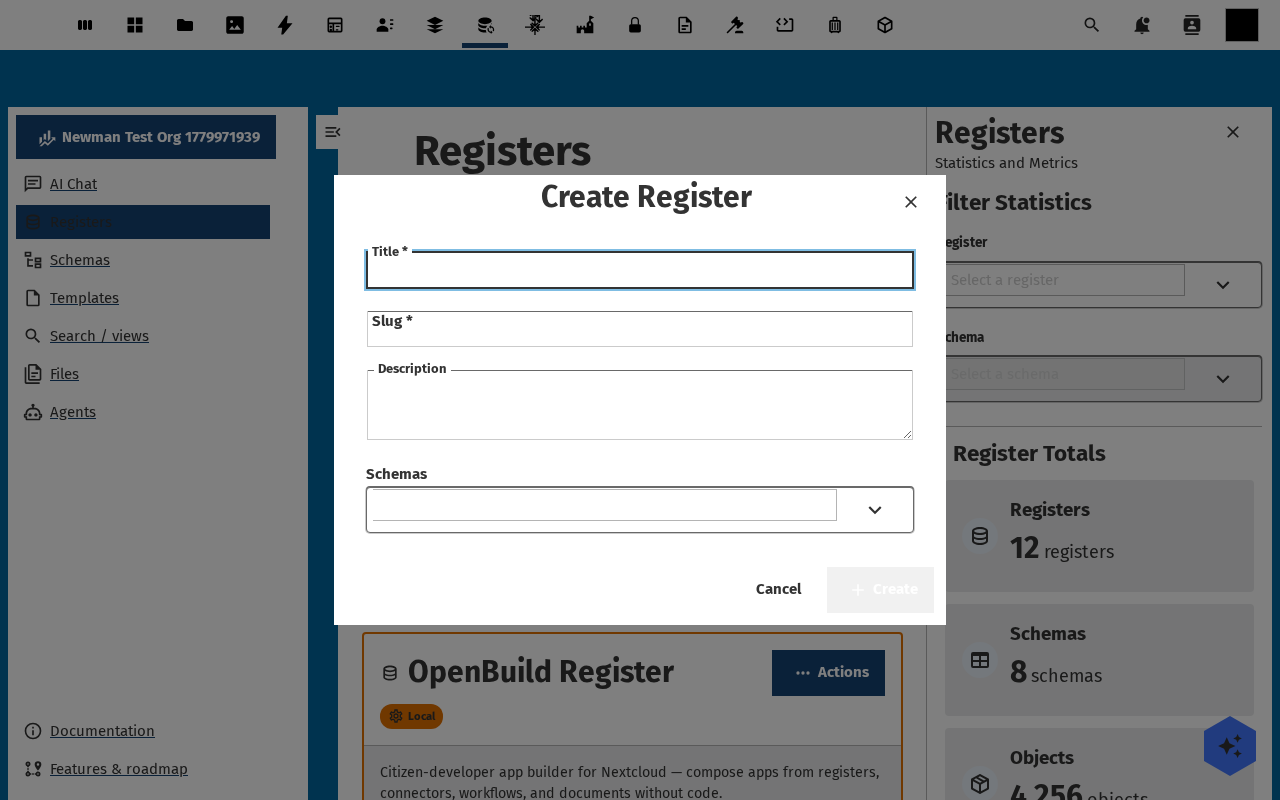
Open Registers in the navigation. The list shows the existing registers (or No registers found on a fresh install). Click Add Register. The Create Register dialog opens.
-
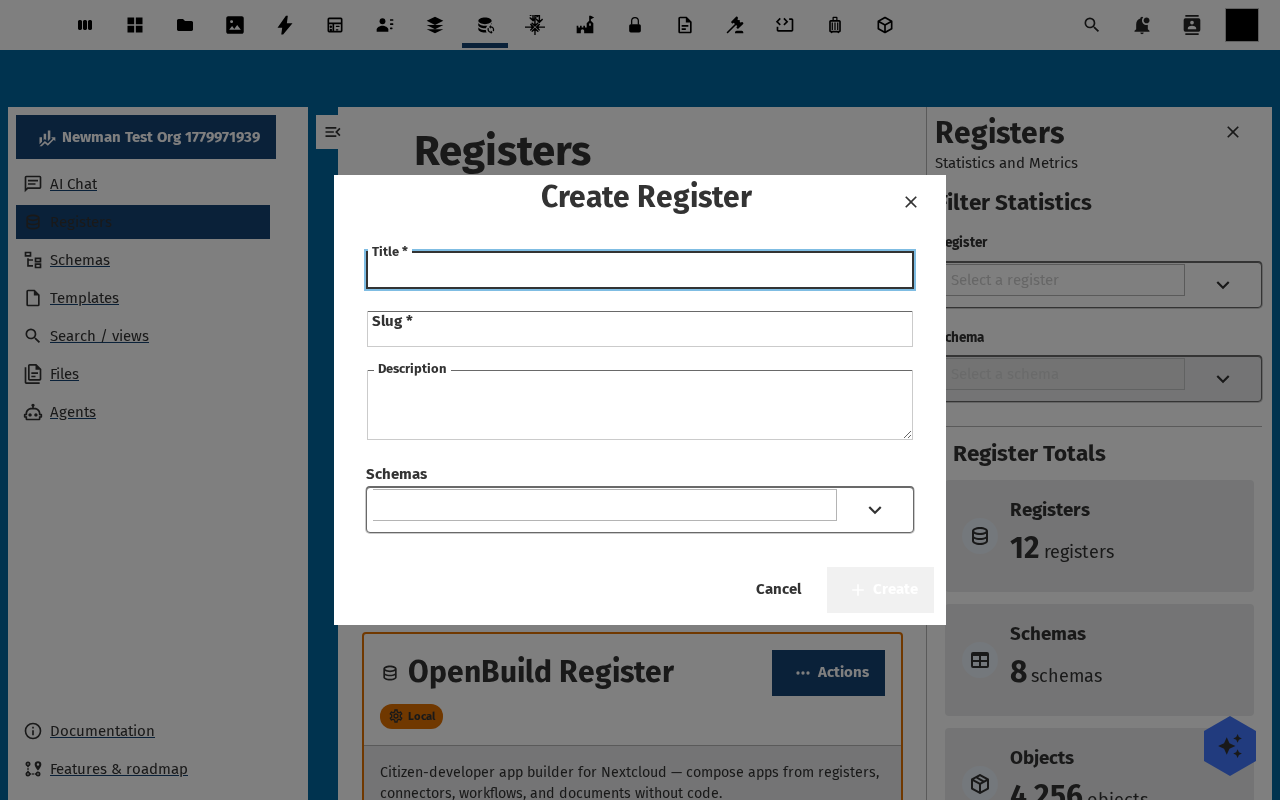
Fill in the fields — title (free-text, shown in the list), slug (URL-safe identifier, auto-suggested from the title — keep it short, lowercase, hyphenated), description (one or two lines on what this register is for), and an optional owner organisation. Pick a colour / icon if you want the register to stand out in the dashboard.
-
Click Save. The dialog closes and the new register appears in the list — switch the Cards / Table toggle to compare layouts. The right-hand statistics sidebar now shows
1more register.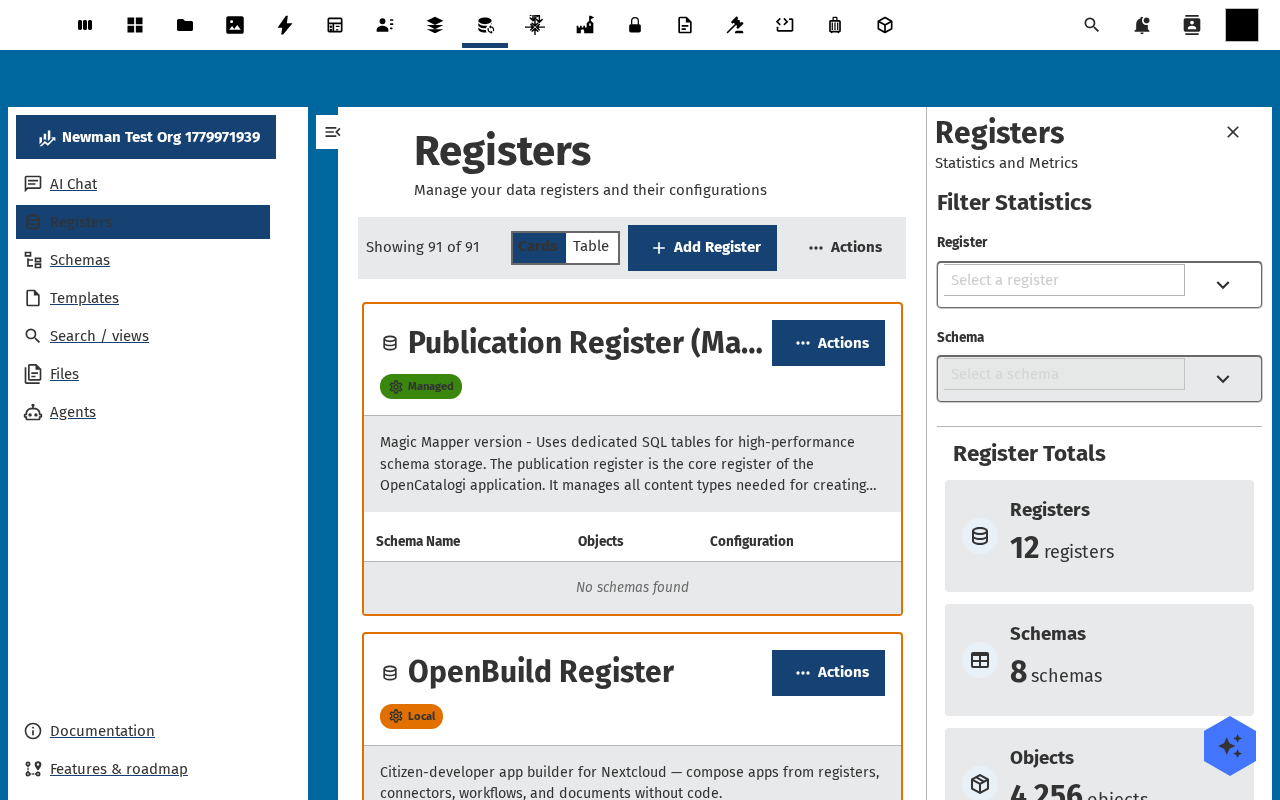
-
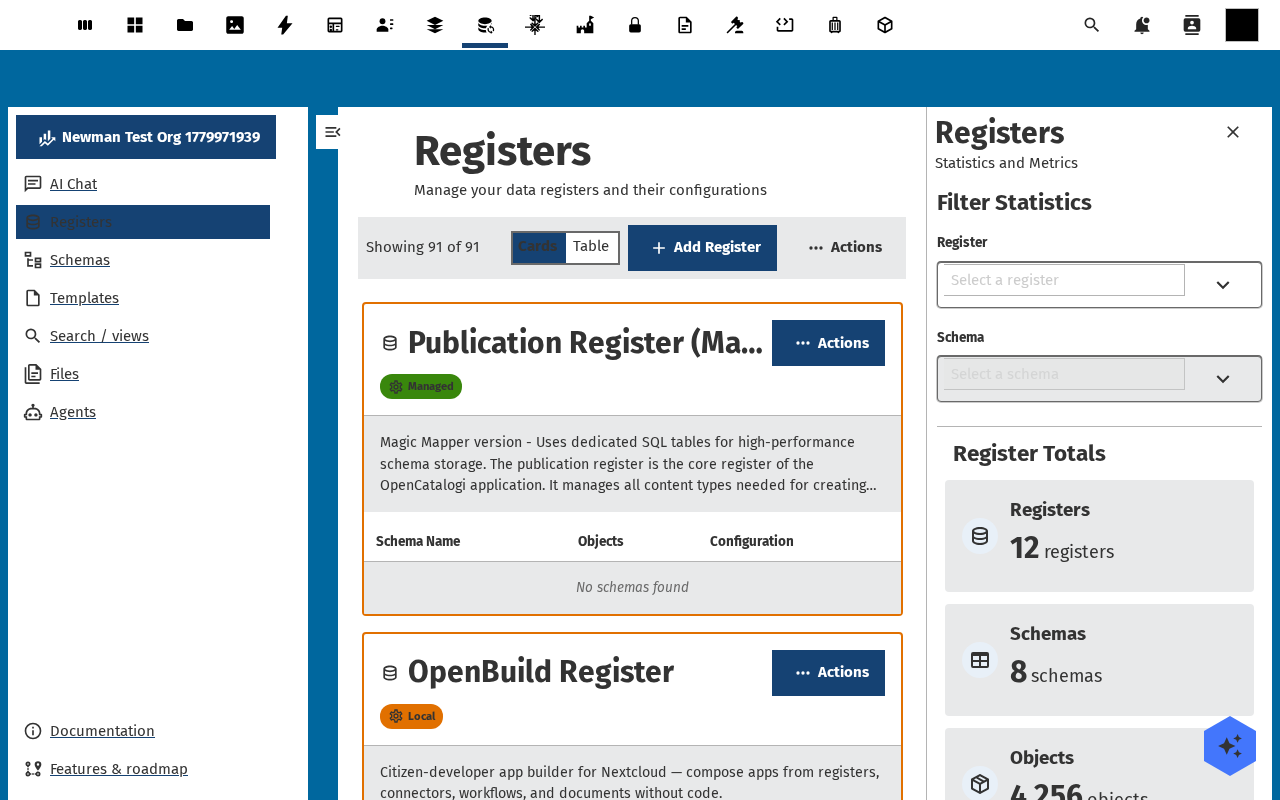
Click the register card (or row) to open the Register detail page. The detail page carries tabs for Overview, Schemas, Objects, Files, Audit Trails, and Settings. Right now every tab is empty — that's expected, no schemas are attached yet.
-
Note the register's URL —
/apps/openregister/registers/<id>. That's a permalink you can share or bookmark.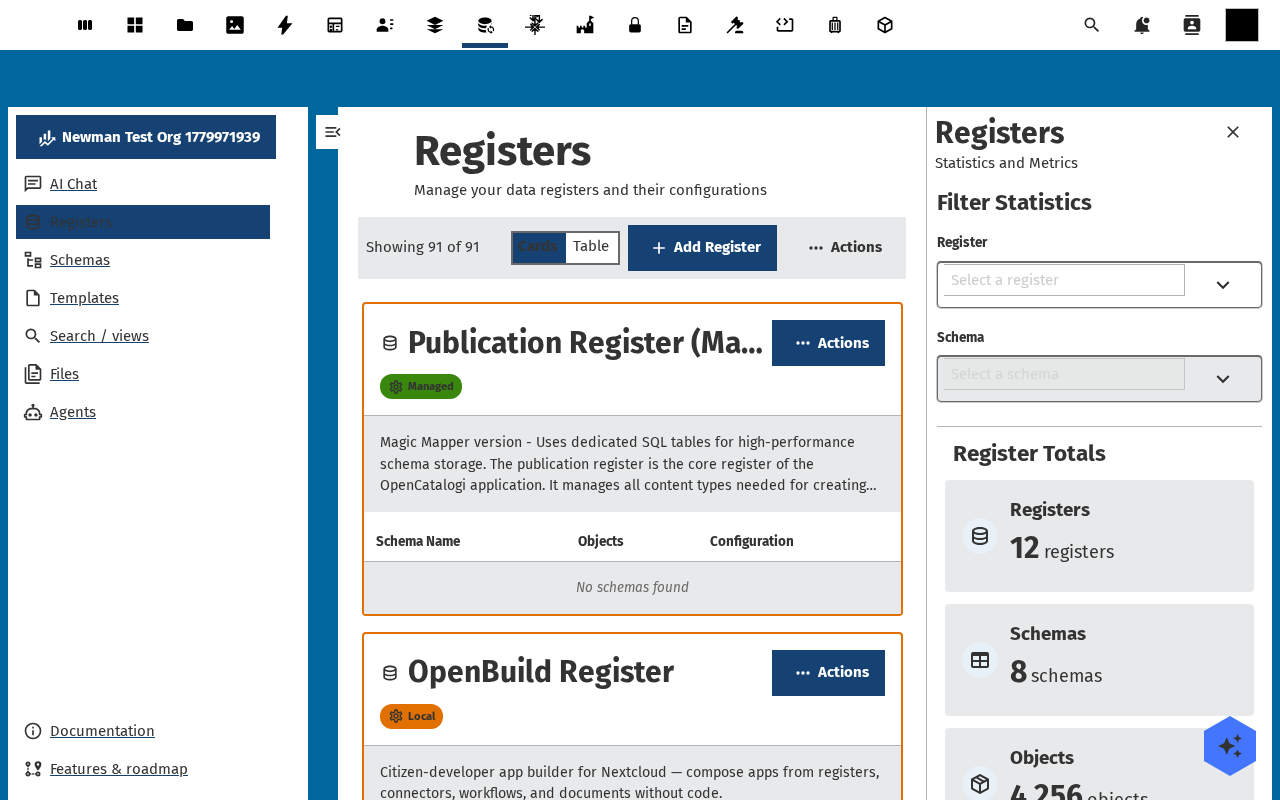
Verification
A new register appears in Registers with the title and slug you set. Opening it shows the detail page with all six tabs, the statistics sidebar count goes up by one, and the audit-trail tab logs a create entry for the register itself.
Common issues
| Symptom | Fix |
|---|---|
| Save is greyed out | A required field is empty — title and slug are both mandatory. Slug must be [a-z0-9-]+. |
| "Slug already in use" error | Another register on the same instance has that slug. Slugs are unique per instance — pick a different one. |
| The new register isn't visible to other users | Default visibility is private to the creator — see Set up roles and permissions to widen access. |
Reference
- Attach a schema to your register — what to do next.
- Add your first object — the typical end-to-end flow.
- Set up roles and permissions — who can create / read / write each register.