Export and import data
Open Register can export any register (objects, schemas, register settings) to Excel or JSON and import the result back — same instance, a different instance, or your local machine. Useful for backups, bulk edits in a spreadsheet, and moving data between dev / test / prod.
Goal
By the end you will have exported one register's objects to Excel, opened the file, and re-imported it back into Open Register without errors.
Prerequisites
- A register with a handful of objects (see Add your first object).
- Spreadsheet software for the Excel round-trip — Excel, LibreOffice Calc, Google Sheets. JSON works in any text editor.
Steps
-
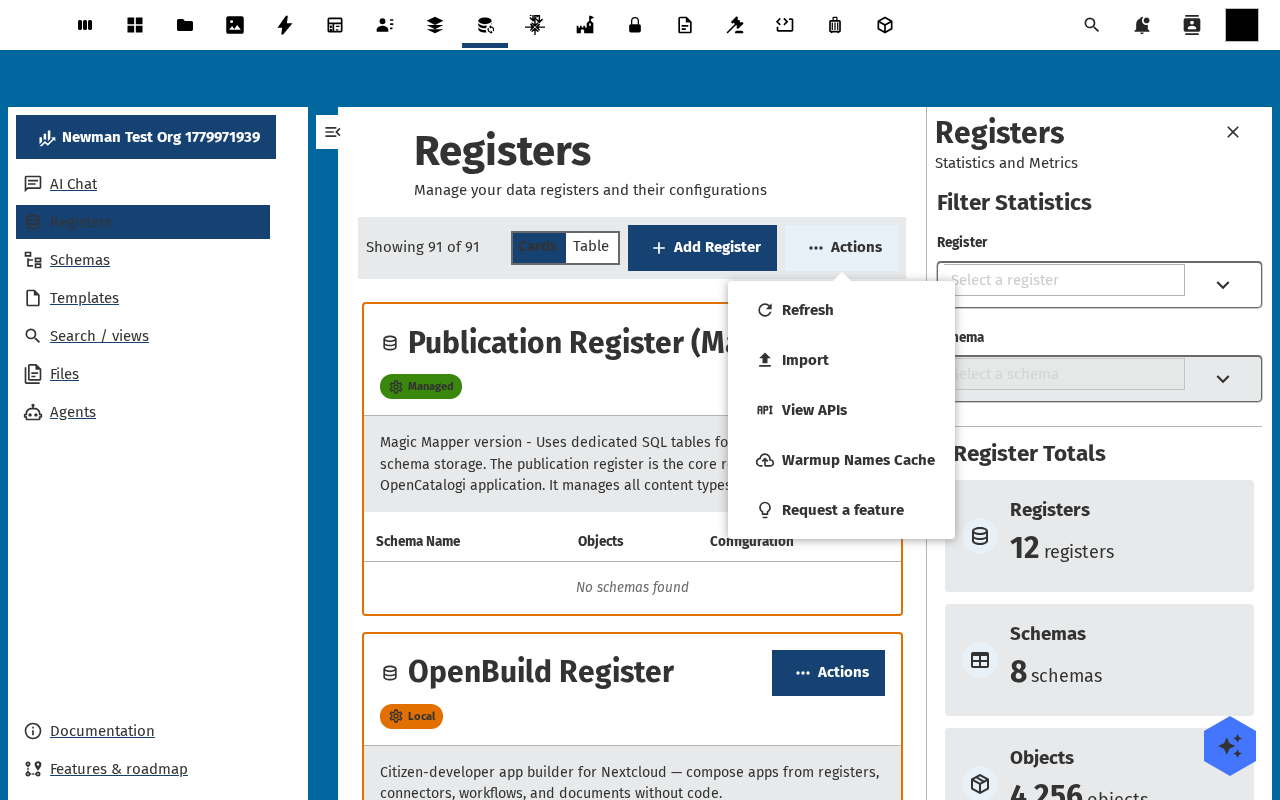
Open the Registers list and click the Actions button in the toolbar. The menu offers Import, Export to JSON, and Export to Excel. Pick Export to Excel.
-
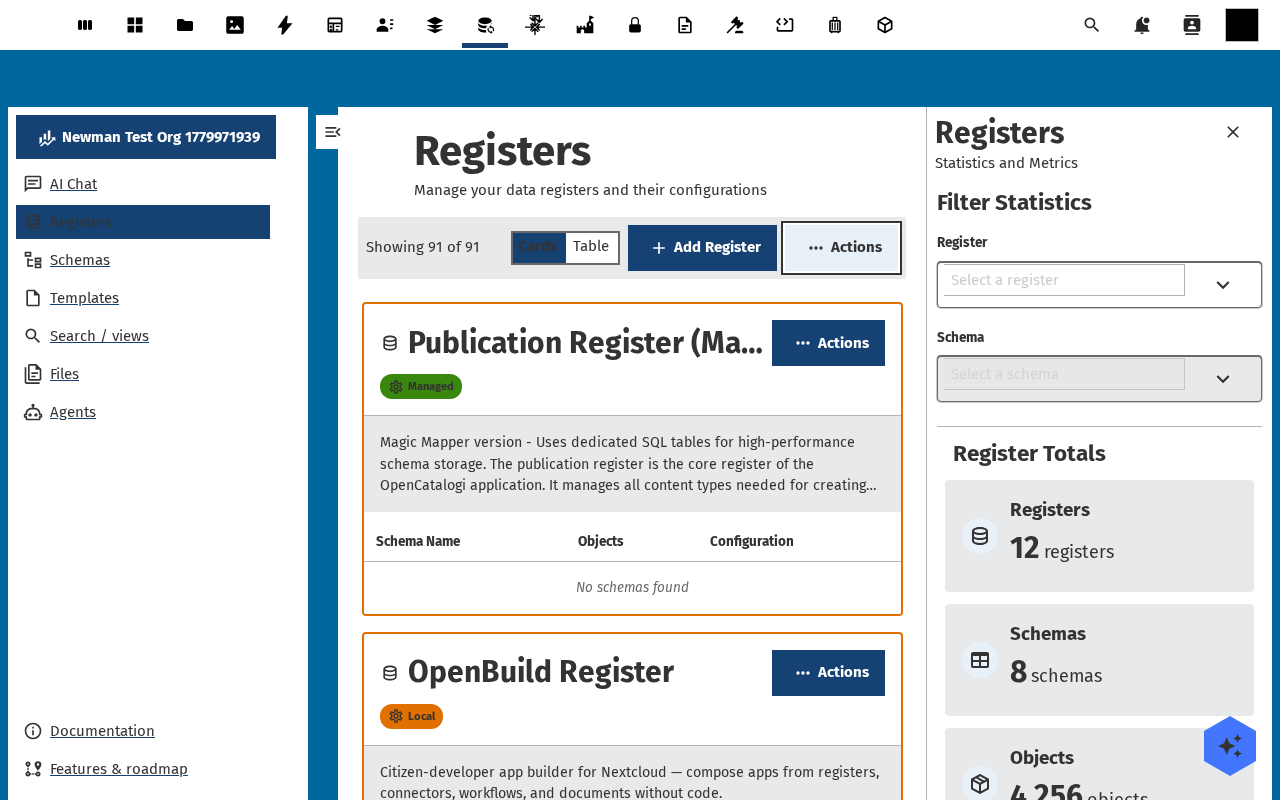
The export dialog asks which registers and schemas to include and whether to include the register / schema definitions or just the objects. Pick your register, leave the schema filter on All, and tick Include definitions. Click Export.
-
The browser downloads an
.xlsxfile. Open it — there is one sheet for the register metadata, one per schema (one row per object, one column per property), and one for the audit trail. Edit a few values in the object sheet and save.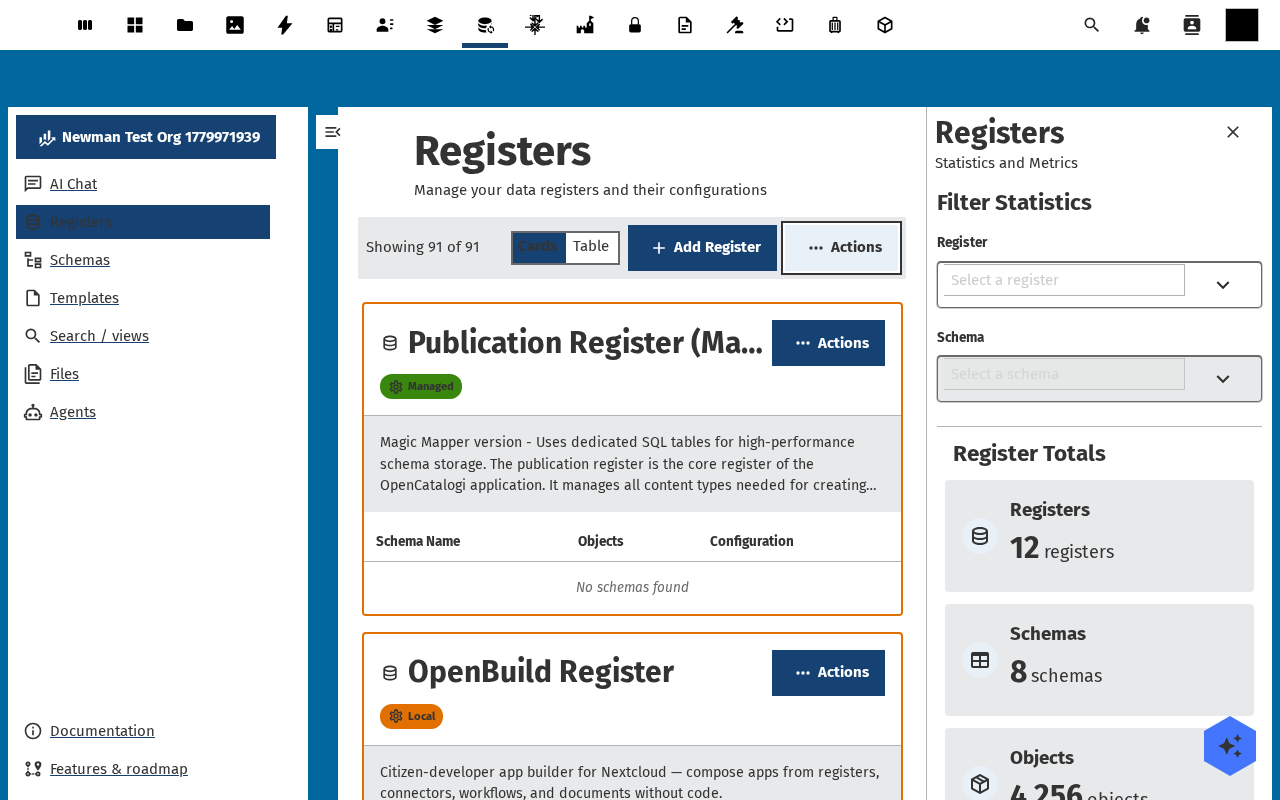
-
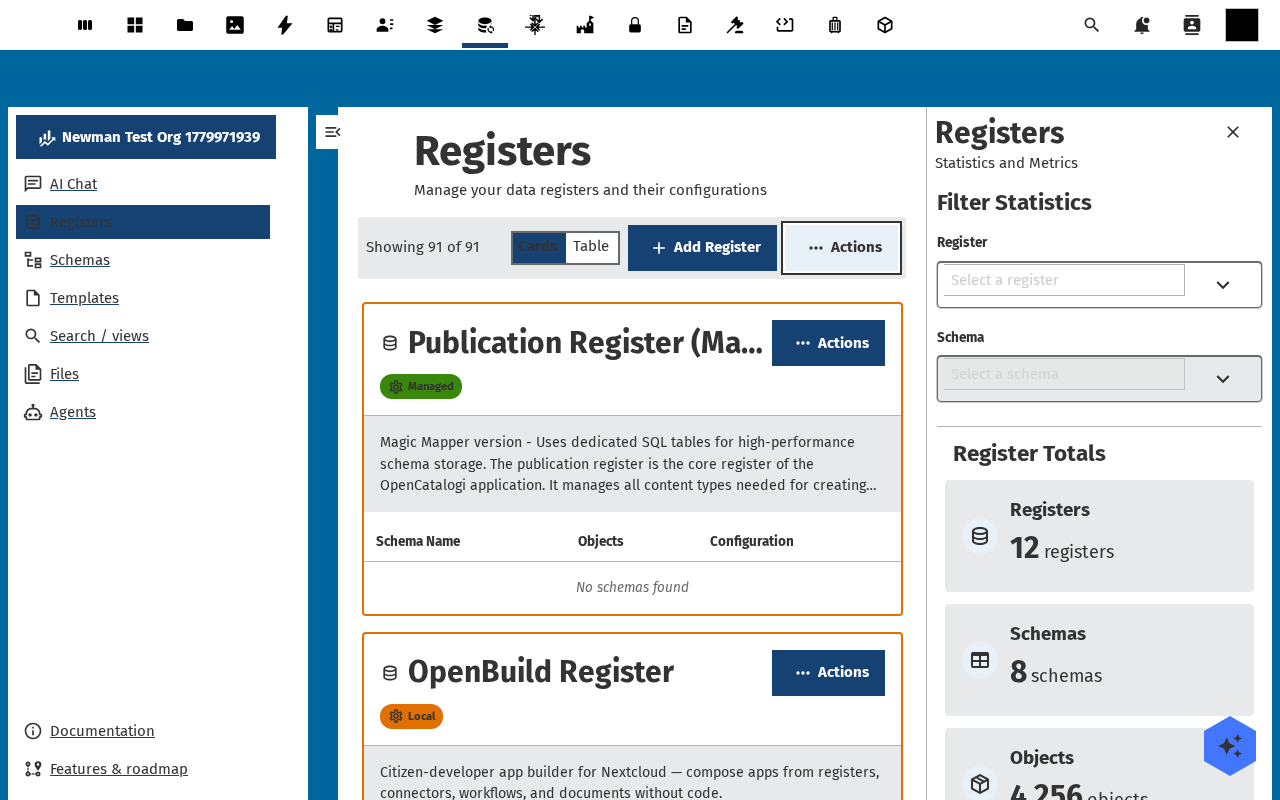
Back in Open Register, Actions → Import. Pick the edited Excel file. The dialog shows a preview — how many rows would be created, updated, deleted, plus any validation issues row by row. Tick Run as dry-run first if you want a no-op preview without writing.
-
Click Run import. The dialog progresses through Validating → Writing → Done and reports the final count (e.g. 0 created, 3 updated, 0 errors). Re-open the affected objects — the edited values are there, and each one has an
updateentry in its audit trail.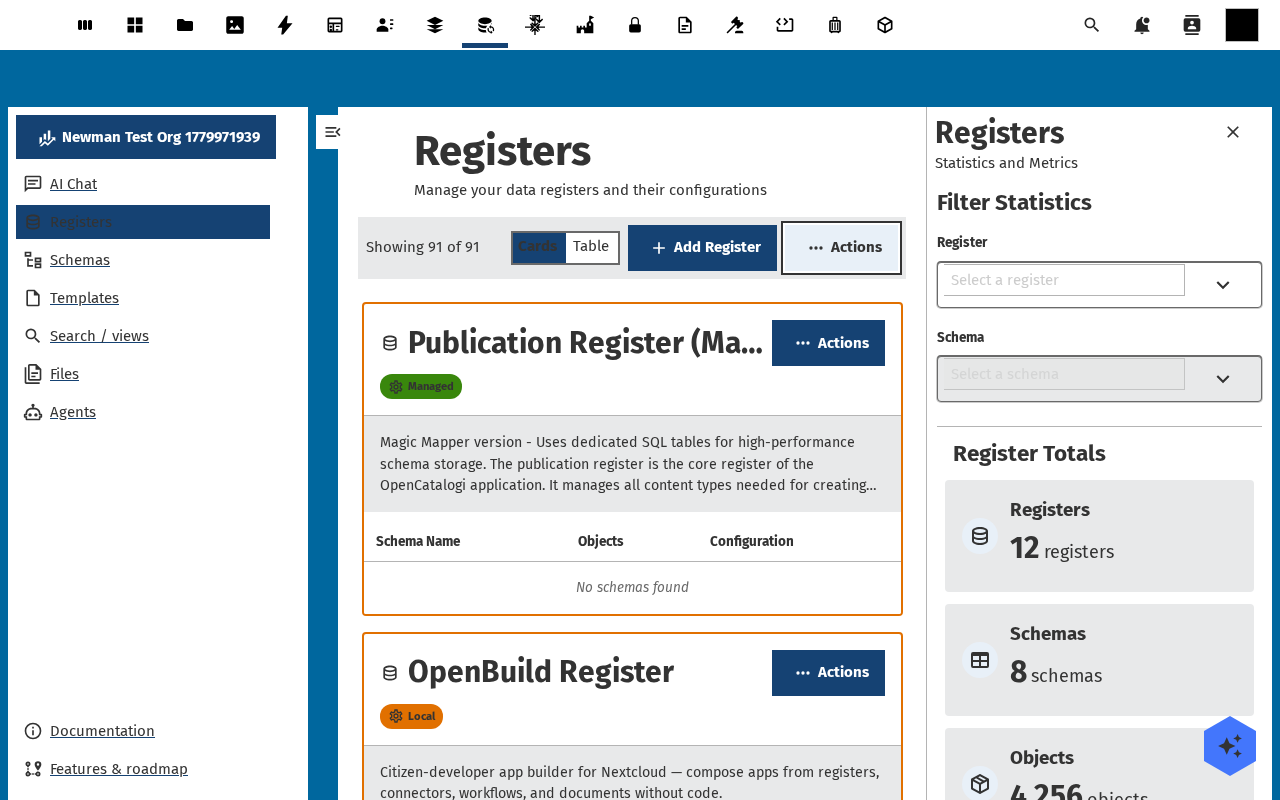
Verification
The Excel file opens cleanly with one sheet per schema; the import dry-run reports the same row count you exported; the live import lands without errors; the edited objects show the new values; each updated object has a new audit-trail entry.
Common issues
| Symptom | Fix |
|---|---|
| Excel rows show as text where you expect numbers / dates | The exporter writes JSON-compatible strings to avoid locale issues. Open Register converts back on import; just don't reformat in Excel. |
| Import preview shows "schema not found" | The instance is missing one of the schemas the file references — either remove the orphan rows or import the schema definition first (tick Include definitions on export). |
| Some rows skipped on import | Validation failed for those rows — the preview / done dialog lists the offending properties. Fix in the spreadsheet and re-import. |
| Import deletes rows you didn't intend to | The default mode is upsert, not replace. If you used Replace, anything not in the file is removed — switch back to Upsert unless you really want that. |
Reference
- Data import and export feature reference — supported formats, the import modes, what definitions cover.
- View the audit trail — verify exactly what changed.