Set up roles and permissions
Open Register ships with role-based access control (RBAC): roles are bundles of permissions, users / groups are assigned roles, and registers and schemas are scoped per organisation. This tutorial walks through one realistic setup — readers, editors, admins — for one register.
Goal
By the end you will have three roles configured, one user / group assigned per role, and the register's visibility narrowed to those three groups.
Prerequisites
- Admin rights on the Open Register app — you need the register-admin role or Nextcloud admin to edit RBAC.
- A register to lock down (see Create your first register) and at least two Nextcloud users / groups to assign —
editorsandreadersare reasonable.
Steps
-
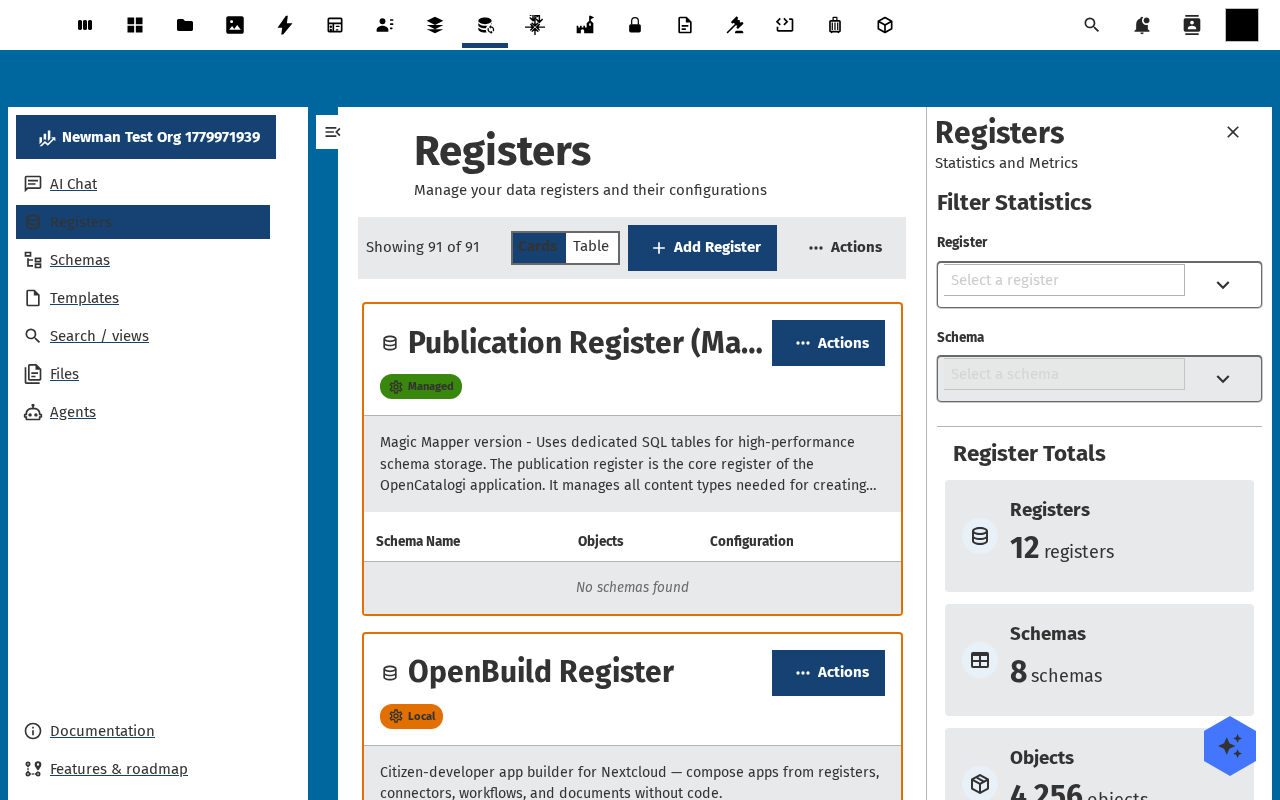
Open the register's detail page and switch to the Settings tab. The tab lists the register's metadata at the top and the Access control block underneath — Visibility, Roles, Default role for new users.
-
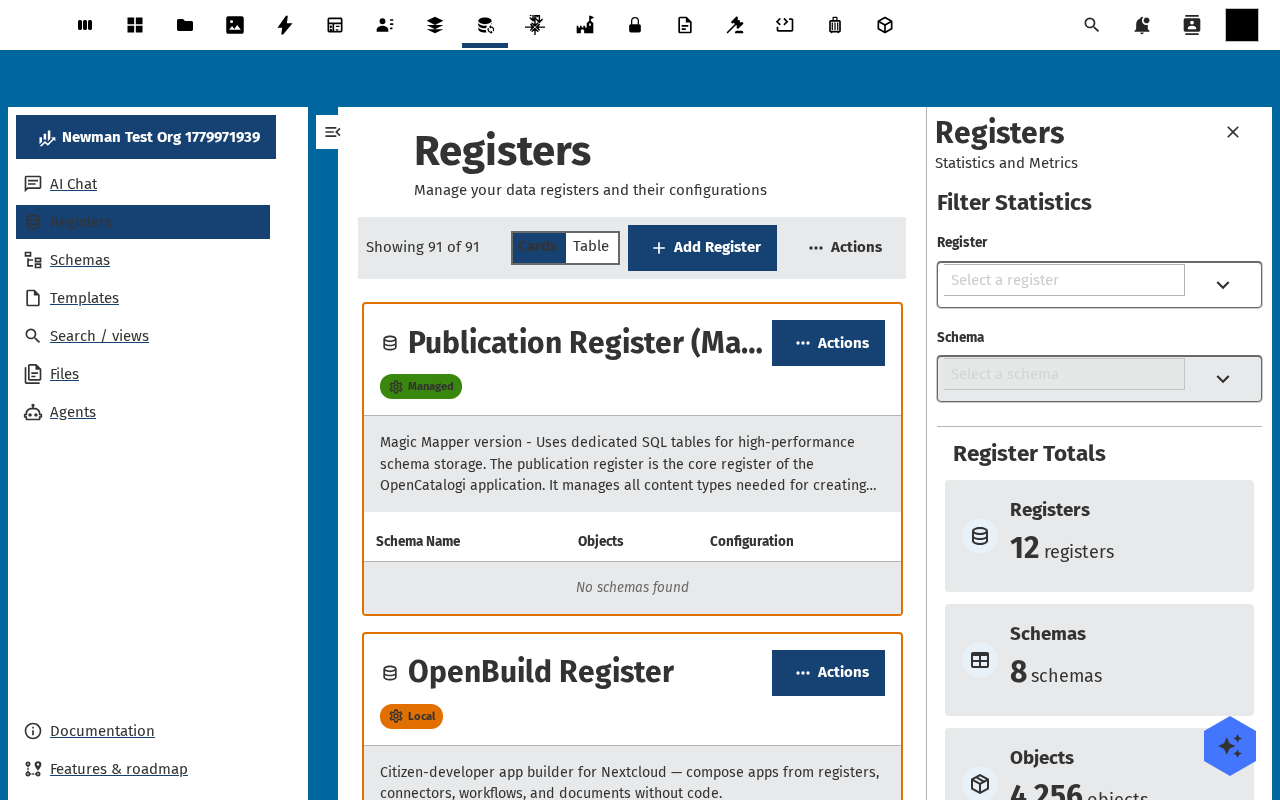
Set Visibility to Private (only assigned users / groups), Internal (any logged-in user on the instance), or Public (anyone, including unauthenticated). For this walkthrough pick Private.
-
Under Roles, click Add role. The dialog asks for a role name (free-text), a set of permissions (
read,create,update,delete,import,export,admin), and an optional scope (per-schema, per-object filter). Add three: reader (read), editor (read,create,update), admin (everything).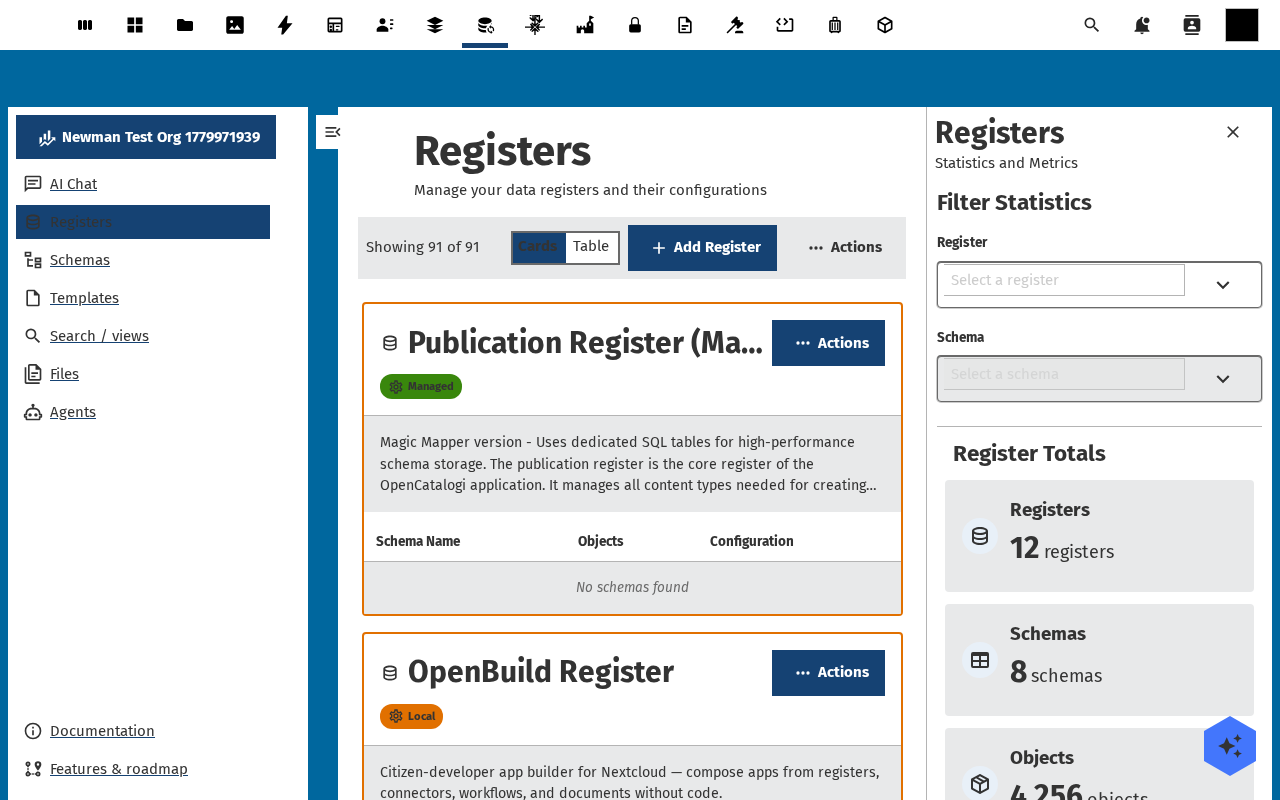
-
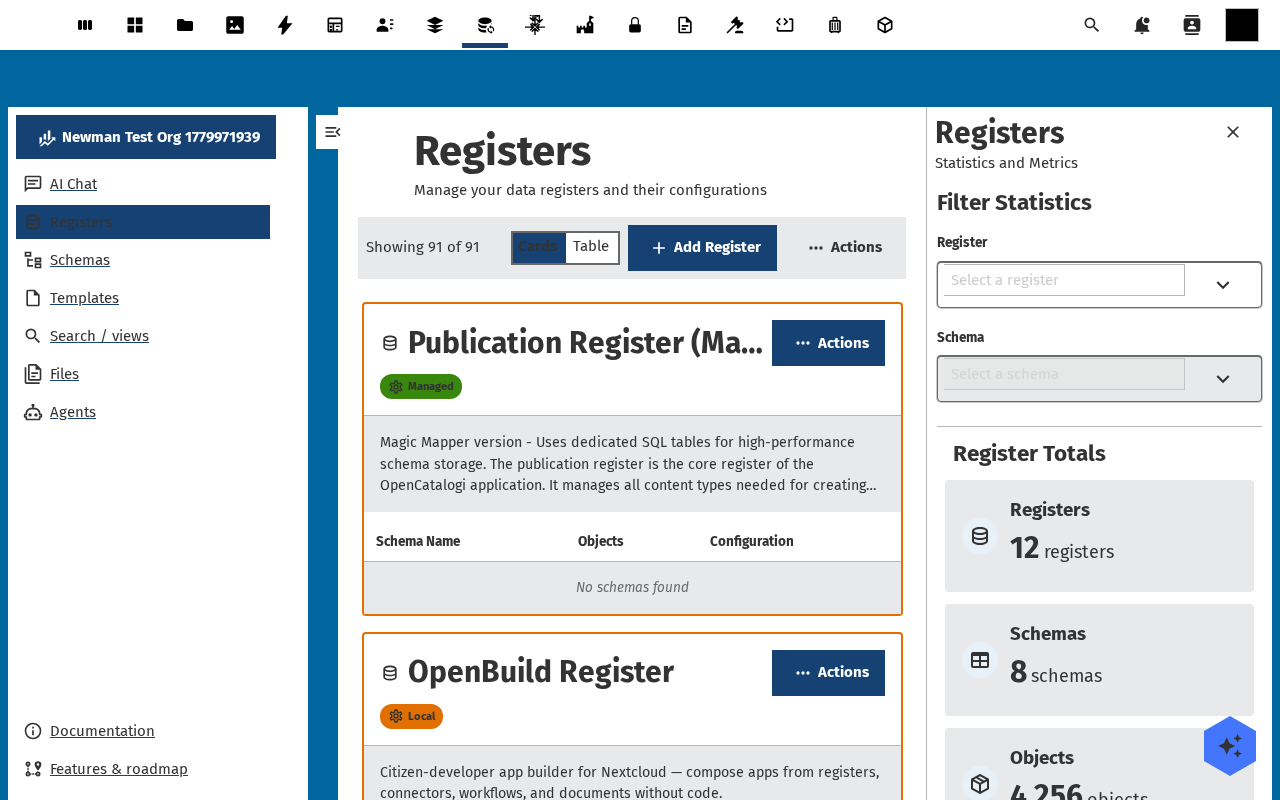
Switch to Members in the same Settings tab. Click Add member, search for a Nextcloud user or group, pick a role from the dropdown, confirm. Add at least one entry per role. Members can be Nextcloud users, Nextcloud groups, or Open Register organisations.
-
Save the Settings tab. Log out and log in as a user that should be a reader — the register opens read-only, Add Object is disabled, the Files tab is view-only. Repeat as an editor — full CRUD on objects, but the Settings tab is hidden.
Verification
The Settings tab lists three roles with the right permission bundles, three members assigned to those roles; readers see the register but cannot edit; editors can edit objects but not change Settings; admins see everything. The register no longer appears at all for users outside the three groups.
Common issues
| Symptom | Fix |
|---|---|
| New member doesn't see the register at all | The user's groups don't include the assigned group, or the user is Disabled in Nextcloud — check Settings → Accounts in Nextcloud. |
| Editor can read but every save fails with "403" | The role has update but the schema is set to system / read-only — open the schema and toggle Read-only off. |
| Admin can't reach the Settings tab | The admin user's role is missing the admin permission — re-open the role and tick it. |
Reference
- Access control feature reference — the full permission matrix and how scopes work.
- Sync data from external sources — sources also inherit register-level RBAC.
- Manage admin settings — instance-wide defaults.