Exporting to Excel and CSV
Open Register allows you to export your data in multiple formats. This guide covers exporting objects to Excel (.xlsx) and CSV files, both at the register level and at the schema level.
Export Formats
| Format | Extension | Best For |
|---|---|---|
| Configuration (JSON) | .json | Backing up register structure and configuration |
| Excel | .xlsx | Bulk data export across multiple schemas |
| CSV | .csv | Simple data export for a single schema |
Exporting from a Register
Step 1: Open the Register Actions Menu
- Navigate to Registers in the left sidebar
- Find the register you want to export
- Click Actions (the three-dot menu) on the register card
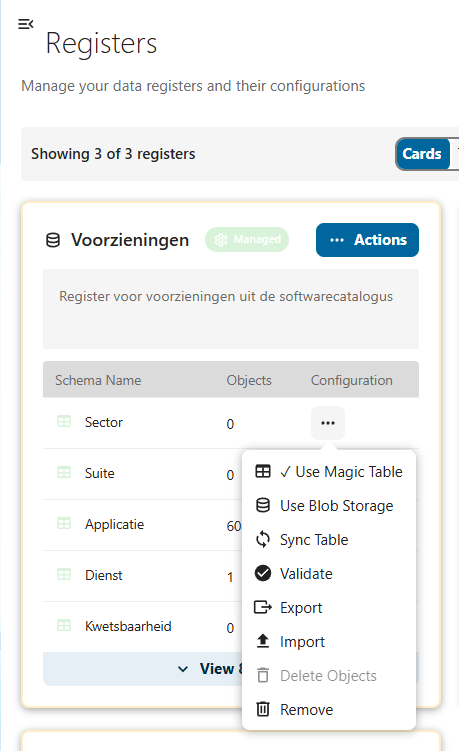
Step 2: Select Export
Click Export from the dropdown menu. The export dialog opens.
Step 3: Choose Format and Options
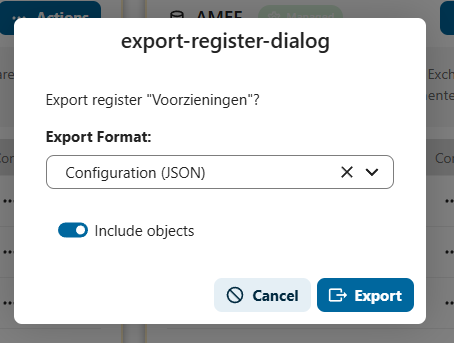
In the export dialog:
-
Export Format: Select your preferred format from the dropdown:
- Configuration (JSON): Exports the register structure, schemas, and optionally all objects as JSON
- Excel: Exports all objects across all schemas as an Excel workbook (one sheet per schema)
- CSV: Exports objects from a single schema as a CSV file (you will be asked to select which schema)
-
Include objects: Toggle this on to include the actual object data in the export. When off, only the register and schema configuration is exported (JSON format only).
-
Click Export to download the file.
What Gets Exported
Excel Export
The Excel file contains:
- One sheet per schema in the register
- Column A:
id(the object UUID) - Columns B onwards: Schema properties (e.g.,
naam,website,type) - Last columns: Metadata fields prefixed with
_(e.g.,_created,_updated,_owner,_organisation)
Example column order:
id | naam | website | type | _created | _updated | _owner | _organisation
CSV Export
The CSV file contains:
- One file for the selected schema
- Same column structure as Excel (id, properties, metadata)
- Comma-delimited values with proper quoting
Exporting from a Schema
You can also export objects directly from a schema's action menu within a register:
- Navigate to Registers in the left sidebar
- Expand a register card to see its schemas
- Click the three-dot menu next to the schema name
- Select Export
This exports only the objects belonging to that specific schema.
File Naming
Exported files are automatically named with the register or schema slug and a timestamp:
voorzieningen_2026-02-20.xlsx
organisatie_2026-02-20.csv
Metadata Columns
Exported files include metadata columns for reference. These columns are prefixed with _ and contain system-managed information:
| Column | Description |
|---|---|
_created | Object creation timestamp |
_updated | Last update timestamp |
_published | Publication timestamp |
_owner | Object owner |
_organisation | Associated organisation |
_register | Associated register |
_schema | Associated schema |
_name | Object display name |
_version | Object version |
Metadata columns are included for reference and audit purposes. When re-importing an exported file, metadata columns (those starting with _) are automatically ignored.
Best Practices
- Use Excel for multi-schema exports: When you need data from all schemas in a register, Excel creates a separate sheet for each schema automatically
- Use CSV for single-schema work: CSV is simpler and works well with external tools like spreadsheet editors or data processing scripts
- Regular backups: Export your data regularly as backups, especially before making bulk changes
- Keep metadata columns: When editing exported files for re-import, do not rename or remove the
idcolumn — it is needed to match existing records - Format choice: Use JSON for configuration backup and migration between environments; use Excel/CSV for working with the actual data
Troubleshooting
Export Button Not Visible
- Ensure you have the necessary permissions to access the register
- Check that you are viewing the register from the Registers page (not from Search / Views)
Empty Export File
- Verify that the register contains objects
- If using CSV, make sure you selected a schema that has objects
- Check that the "Include objects" toggle is enabled
Large Exports Timing Out
- For very large datasets (tens of thousands of objects), the export may take some time
- The browser will automatically download the file when it is ready
- If the export fails, try exporting individual schemas instead of the entire register