Attach files to an object
Open Register lets you attach files to any object — PDFs, images, spreadsheets, anything. Files are stored in Nextcloud Files under an object-specific folder, so they pick up the usual sharing, versioning, and preview behaviour for free.
Goal
By the end you will have uploaded one file to an object, previewed it in place, and found it from the global Files view in the Open Register navigation.
Prerequisites
- An object you can edit (see Add your first object).
- A file on your local machine to upload — any type works. The screenshots use a small PDF.
Steps
-
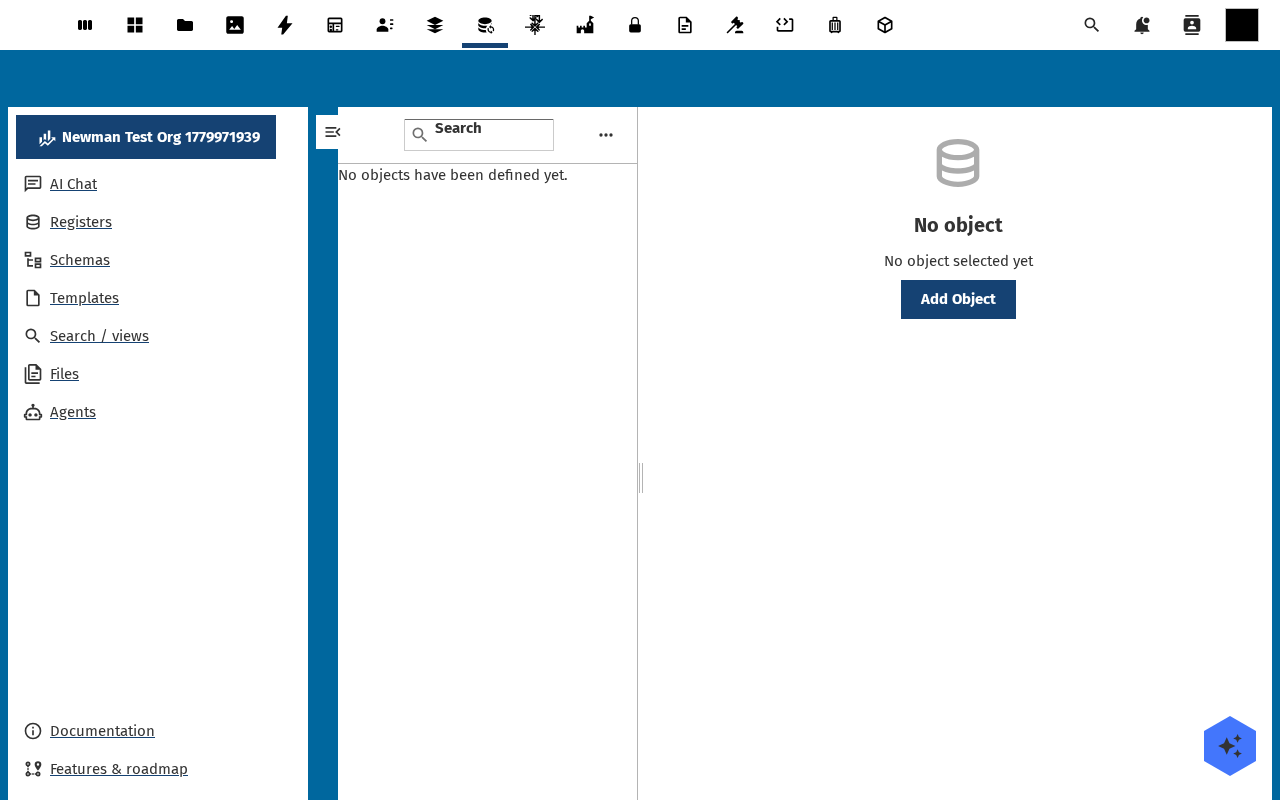
Open an object's detail page and switch to the Files tab in the sidebar. On an object without attachments the tab shows an empty drop zone — Drop files here or click to upload.
-
Drag a file onto the drop zone or click it to open the file picker. Upload starts immediately — progress shows in a toast. The new file appears in the tab list with name, type icon, size, and uploader.
-
Click the file row to open the preview pane on the right — PDFs render inline, images load full-size, spreadsheets open in the Files preview. The action buttons let you download, rename, share, tag, lock and delete the file straight from this view.
-
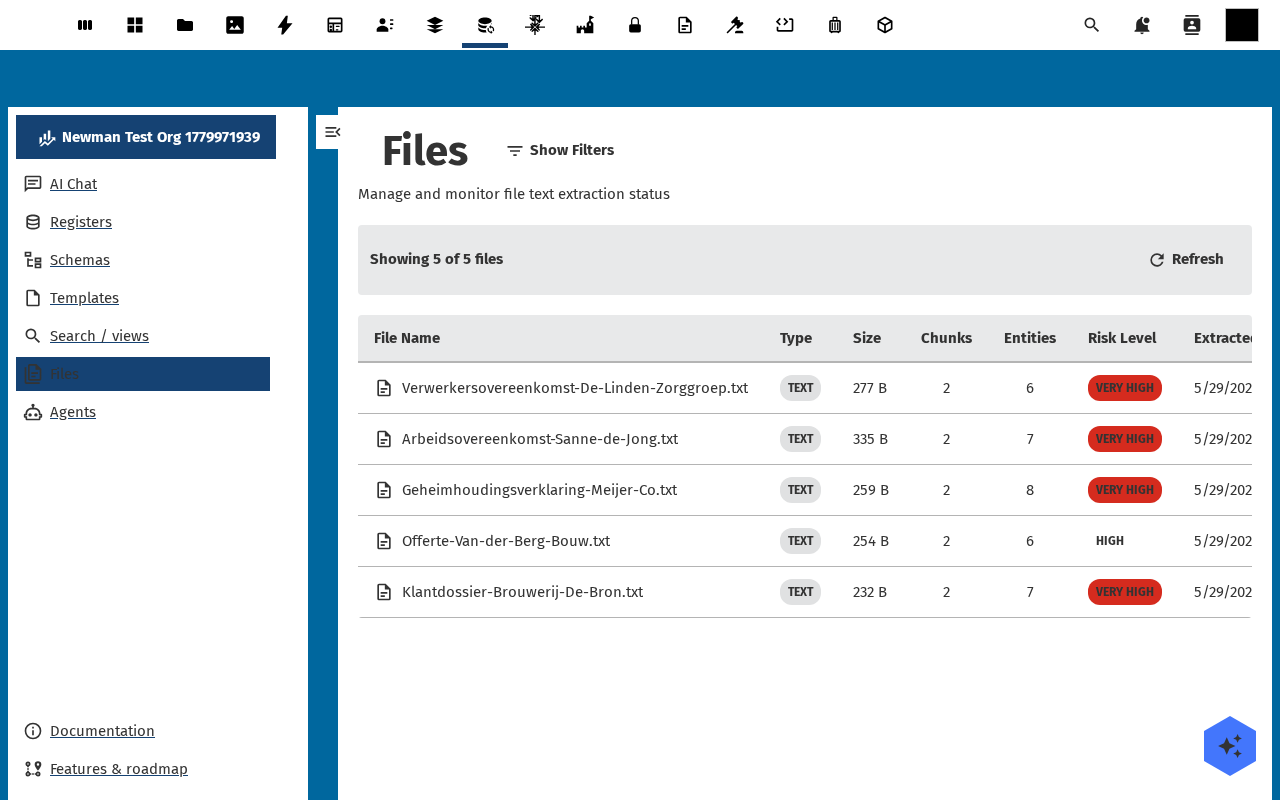
Open Files in the Open Register navigation for the cross-object view. The list shows every file attached to every object you can read; filter by register, schema, type, uploader or tag on the right.
-
Note the file is also visible in the standard Nextcloud Files app under the object-specific folder (
Open Register / <register> / <object-id>/) — the same file, two surfaces.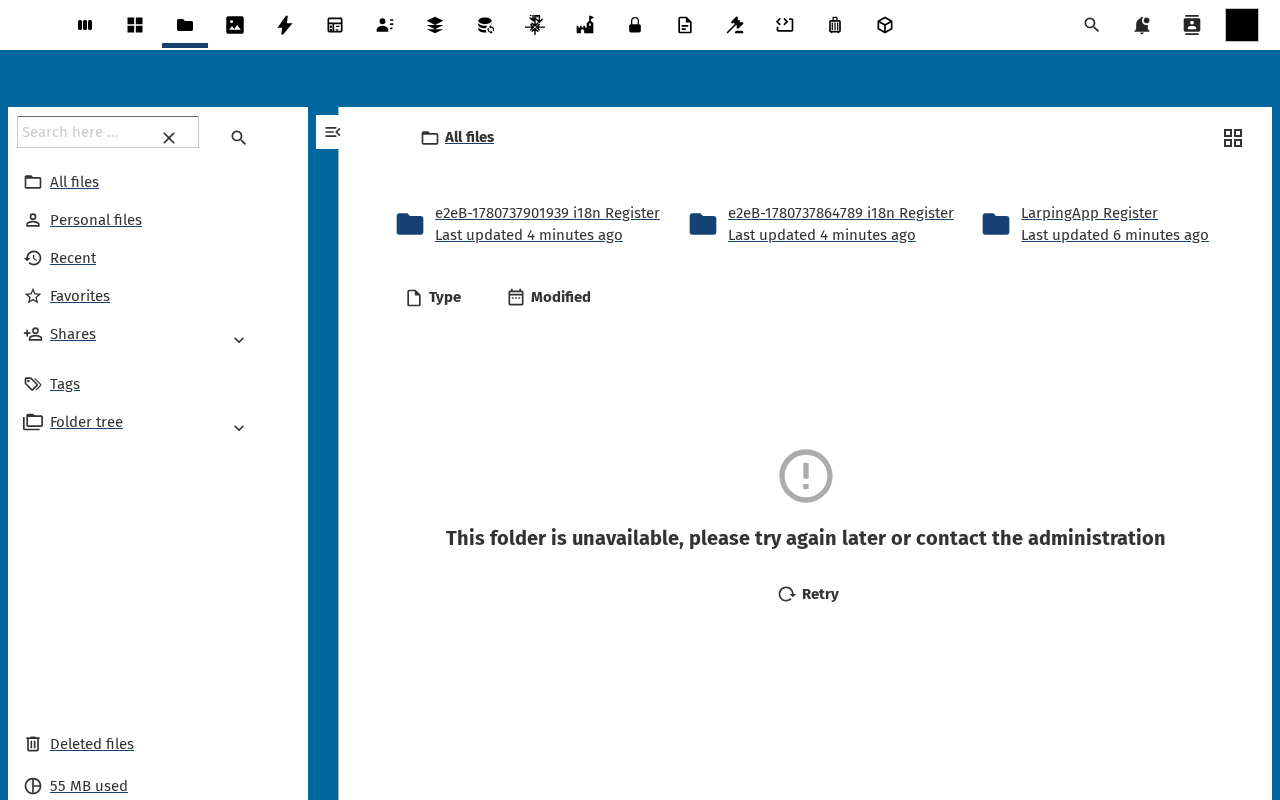
Verification
The object's Files tab lists the upload, the preview pane renders the file, the global Files view in OR lists it under the right register, the standard Nextcloud Files app shows the same file in the object's folder, and the object's Audit Trails tab records a file_added event.
Common issues
| Symptom | Fix |
|---|---|
| Upload fails with "413 Payload Too Large" | The file is bigger than the Nextcloud upload limit — admin raises upload_max_filesize / post_max_size in PHP or uses chunked upload. |
| File uploads but no preview | The file type has no built-in Nextcloud previewer (e.g. some video formats). Download still works; install the Files preview generator if you need it. |
| Drop zone rejects the file with "blocked" | A retention or tag policy is blocking the type — see File actions feature reference. |
Reference
- Files sidebar feature reference — what each action does.
- File actions feature reference — bulk operations and retention.
- Export and import data — round-trip your objects out of OR and back.